Your first part (sketch → extrude)
Draw a 2D profile on a plane, then extrude it into a solid — the core loop of every part.
Every part starts the same way: sketch a 2D profile, then give it depth.
Steps
- Click Sketch and pick the Top plane (or Front/Right).
- Draw a Rectangle: click one corner, then the opposite corner. Type exact sizes any time with Smart Dimension.
- Press Finish sketch.
- Click Extrude, set the depth (e.g.
20 mm), and confirm with ✔.
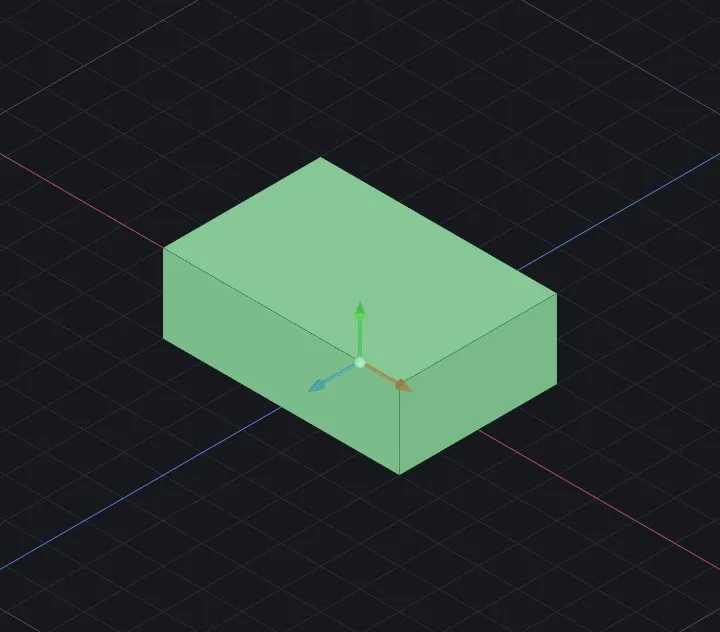
You now have a solid body. Everything you do next — holes, fillets, shells — builds on this loop.
Tips
- The status bar always tells you what the tool expects next.
- Made a mistake? Ctrl+Z works everywhere, including inside a sketch.
- Double-click any feature in the tree on the left to edit its numbers later — the part rebuilds.
Related: Learning path — hammer8 in 30 minutes · Navigating the 3D view · Fillet & chamfer · Using the AI assistant